Fatal Claw Controls
Full controller support, keyboard customization, verify binds in-game.
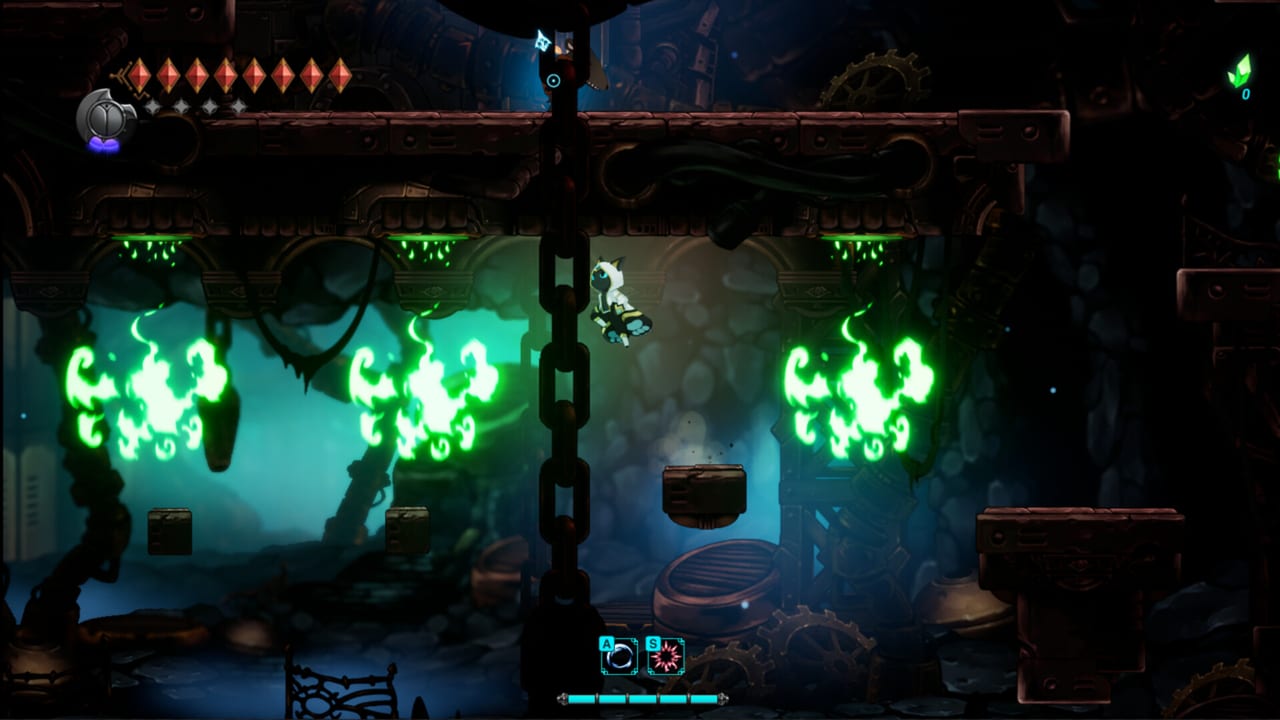
Fatal Claw ships with full controller support and a keyboard customization menu. This page explains what is confirmed in official patches and store tags. It does not invent a complete official bind table. If a key below disagrees with your pause-menu list, the pause menu wins.
NDEV GAMES spent Early Access taking bind and camera feedback seriously. The 1st Expansion Update (v0.9.228) increased the range for Look Up and Look Down and added Up and Down scroll keys to keyboard customization. The 2nd Expansion Update (v0.9.265) slightly increased analog stick dead zone after player reports. Those changes are in the 1.0 build. You should still open Settings after install, because a Steam Deck layout, a third-party pad, or an old community config can hide the defaults.
Keyboard: customize, then verify
Keyboard players get a real rebind list rather than a locked WASD-only scheme. Treat these as typical Metroidvania defaults you must confirm in-game, not as a leaked official chart:
- Movement is almost always a horizontal walk plus jump. Many players leave walk on WASD or arrow keys.
- Attack is a claw press. Some people bind it near jump; some use a mouse button. Confirm which key the menu labels as the claw / attack action.
- A movement burst (players often call it dash or Blink in conversation) will have its own action. Do not assume Shift is official until you see it in the list.
- Interact / confirm is usually a dedicated key. Menus may share confirm with attack; that sharing is common in the genre and may not be independently rebindable.
- Map opens Carox. Bind it somewhere you can hit without taking a thumb off movement.
- Look Up and Look Down are first-class actions. Official notes increased their camera range. Bind them if you play on keyboard; a lot of ledges and Cabitz sit just outside a lazy camera.
- Up and Down scroll keys were added for keyboard customization. Use them for Codex, menus, and any list that previously needed a mouse wheel.
If the game offers separate Look Up / Look Down from walk-up / walk-down, keep them distinct. Holding up to aim a vertical attack is not the same as peeking the camera into a ceiling shaft.
Rebind from the pause menu Settings path (the exact submenu label can vary by build; look for Controls, Keyboard, or Customization). After you save binds, jump in a safe Origin Laboratory corridor and test: walk, jump, claw, heal, Blink, map, look up, look down, and a menu scroll. Fix anything that feels like a fighting-game negative edge before you enter a named fight.
Controller: full support, dead zone, no invented face-button chart
Steam lists full controller support. Xbox-style and PlayStation-style pads both work; the game talks in actions, not in one brand’s silkscreen. Typical Metroidvania layouts — left stick walk, a face button jump, a trigger or face button attack, a bumper for Blink or skills — are a reasonable starting point. Verify the in-game controller map instead of copying a wiki table.
Analog stick dead zone was increased in v0.9.265. If your Kisha drifted or micro-walked in Early Access, test again on 1.0 before you buy a new pad. If you still get drift, raise dead zone in Steam Input as well as in-game, then test on a flat floor with no input.
Do not assume D-pad skill slots, gyro aim, or hold-versus-toggle dash unless the menu shows those options. Community configs on Steam Input can add radial menus and gyro; those are Steam features layered on top of the game, not documented official presets.
Steam Deck notes (playable with a controller)
Fatal Claw is playable on Steam Deck because it has full controller support and modest system requirements (see System Requirements). This wiki does not call the game Steam Deck Verified. On Deck:
- Use the default gamepad layout first. If a community layout remaps Look Up to a trackpad click you never hit, hidden rooms will look empty.
- Keyboard and mouse can be attached; the game already customizes keyboard keys including Look Up / Look Down and scroll.
- Trackpads can emulate mouse look or extra buttons through Steam Input. That is optional, not required.
- Keep a charger nearby for long map sessions. The 3 GB install is small; thermals depend on your TDP, not on a fake “Deck mode” in the game files.
If Deck performance dips in dense rooms, drop an in-game quality slider if you have one, or lower Deck TDP, before you assume the save is corrupt.
Screenshots, pins, and overlay
There is no official photo-mode write-up in the materials this wiki trusts. Use Steam overlay (Shift+Tab) and F12 screenshots. In-game drones and map markers behave like screenshot pins: drop them on rooms you cannot finish yet, then return after Lyani’s Claws or Blink upgrades. Overlay is also how you watch achievement unlocks without alt-tabbing; see Achievements.
Steam Cloud syncs settings with the rest of the save family on Windows. If a Deck session and a desktop session fight over a rebind file, let Steam resolve the cloud conflict to the machine you actually play on.
Combat-adjacent binds worth testing
You do not need a speedrun layout on day one, but a few actions show up constantly in How to Play:
- Heal must be reachable without opening a menu. If heal is on a far number key, you will die in Ortrinde or Irbes learning the pattern instead of the resource.
- Engraved Skills need a key you will not fat-finger while walking. If the default puts them on 1–3, that is a common genre layout, not a promise.
- Blink is both a combat and puzzle verb. Players who bind it to a difficult chord will hate the Elord Castle mirror and Blink rooms more than the design deserves.
- Pause remains the door to difficulty sliders. If you rebound pause to an easy misclick, you will freeze mid-autoscroller.
After binds feel honest, go back to Beginner Tips and play. If a challenge room is unfair because you cannot look up, that is a control problem. If it is unfair because you skipped Cabitz, that is a build problem. Split those diagnoses.
Accessibility and difficulty are not the same menu
Combat can be made easier with difficulty and per-category accessibility sliders. That is not a control scheme, but it changes how precise a bind needs to be. A player using a stick with a large dead zone may want easier enemy damage while they learn Blink timing. A player with a hitbox-perfect keyboard may still want larger Look Up range. Use both menus instead of forcing one to fix the other.
When you are ready for the first-hour route with these binds in place, open Getting Started. For named encounters, use the Bosses Hub. For hardware, stay on System Requirements.
Frequently Asked Questions
Quick answers to the most common questions.
Where is the official full key list?
Open the in-game keyboard customization menu. This page only describes typical Metroidvania defaults and confirmed patch items (Look Up / Look Down range, Up/Down scroll keys, analog dead zone). It will not invent a J/K/Shift table.
Does Fatal Claw support controllers and Steam Deck?
Yes. Steam lists full controller support, and the game is playable with a controller on Steam Deck. That is not the same as this wiki claiming an official Deck Verified badge.
Why does my analog stick drift after the expansions?
Version 0.9.265 increased analog dead zone based on player feedback. Update to 1.0, retest, then raise Steam Input dead zone if needed. Do not assume a broken save.
How do I look above a ledge on keyboard?
Bind Look Up and Look Down. Official notes increased their camera range in the 1st Expansion. Peeking is separate from walking into a ceiling.
How do I take screenshots or mark a room?
Use Steam overlay and F12 for screenshots. Use in-game drones or Carox markers like screenshot pins so the location stays on your map after you quit.
Can I use keyboard and a controller together?
Many Steam action games accept mixed input. Confirm in a safe room that both devices move Kisha without fighting. If they conflict, disable one device in Steam Input.